
Phone app
Follow every machine from your phone: live progress, previews, notifications and remote control.
- iPhone and Android
- Sign in with Google
- Day and Night themes
Get the app
RenderBuddy is for iPhone and Android. Open it and tap Sign in with Google. Your machines are tied to that account.
The App Store and Google Play releases are coming soon.
Add a machine
- Install the Agent on the PC
See the Agent guide. It shows a QR code until it's paired.
- Tap Pair a machine
It's the QR button on the right of the dashboard.
- Scan the code
Or tap Enter code instead and type the 10-character code from the Agent's Can't scan? link.
The dashboard
One card per machine. Each card shows its name, its CPU, GPU and RAM, and what it's doing. While a machine works, the card adds live CPU, GPU and VRAM load, the app and its progress, the sequence or file, the frame and the time left.
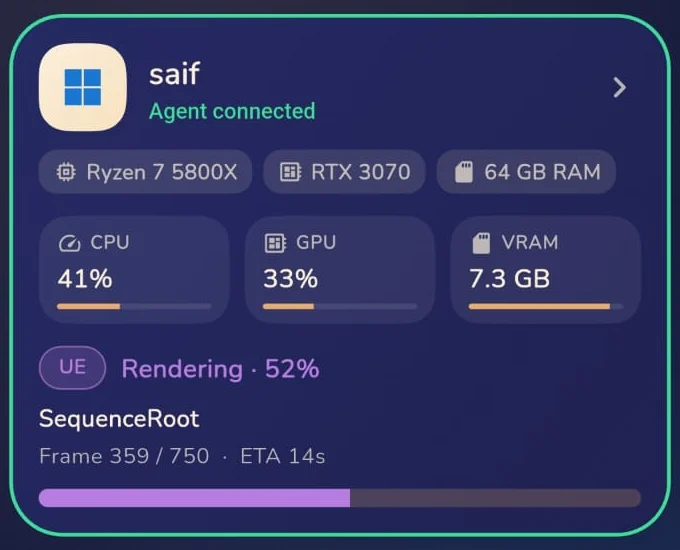
The card's border tells you about the connection:
- Green: the Agent is connected.
- Amber glow: reconnecting. Usually a short network drop.
- Grey: disconnected, with the time it was last seen.
Live numbers stream only while you're looking. Close the app and the machine stops sending them; you'll still get notifications.
The machine page
Tap a card to open the machine. Every app the Agent has seen on that machine is listed. Expand an app to see its job: sequence or file, job ID, frame, elapsed time and time left, plus live load.
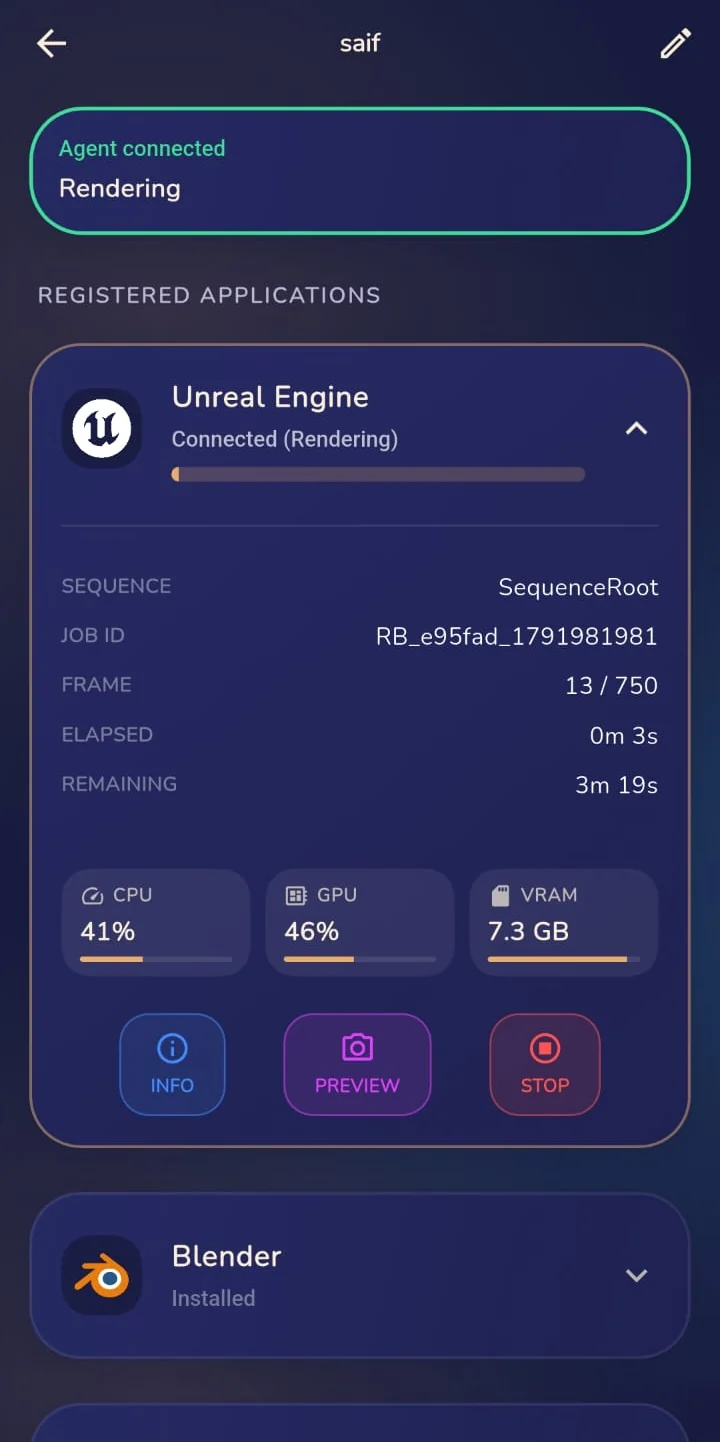
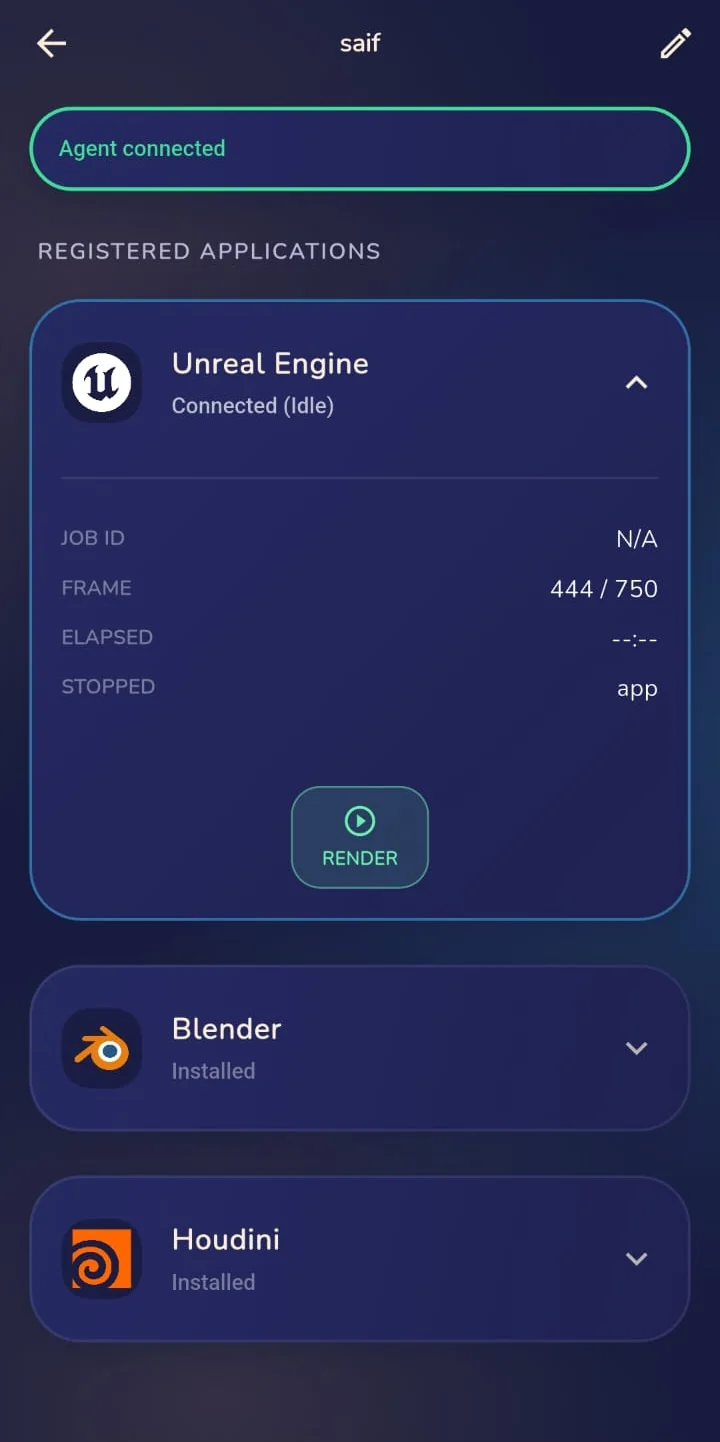
| Button | What it does |
|---|---|
| Info | Opens the job details. |
| Preview | Asks the app for the frame it's rendering and shows it. |
| Stop | Stops the render. Blender stops between frames. |
| Render | Unreal only: pick a Movie Render Queue preset and a level sequence, and the render starts in the open editor. |
Tap the pencil at the top to rename the machine (up to 16 characters).
Notifications
Allow notifications when the app asks. Each one starts with the machine's name, for example Workstation-2 · Render Finished.
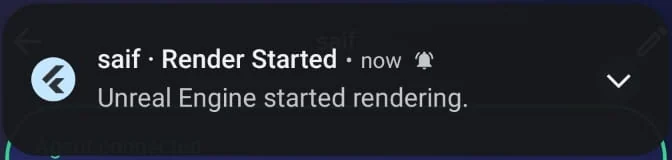
| You're told when | |
|---|---|
| A render starts, finishes, fails, pauses or is cancelled | From any app with the plugin. |
| Black frames | The output looks black several frames in a row. |
| An app stops responding | It went quiet for a minute in the middle of a render. |
| RenderBuddy was closed or the machine went offline during a render | The offline alert waits two minutes, so short network blips don't wake you. |
| The machine is back online | Only after one of the alerts above. |
Idle machines that go offline don't send alerts. The app shows "Disconnected · last seen …" instead.
Settings
Tap your profile picture at the top of the dashboard.
- Theme: System, Day or Night.
- Notification settings: opens your phone's settings for RenderBuddy.
- Privacy Policy, Terms of Use, Open-source licenses and Contact support.
- Sign out.
Remove machines or your account
Remove a machine: tap the select button on the dashboard, pick the machines and delete them. Their Agents go back to the pairing screen.
Delete your account: in Settings, tap Delete account, type DELETE and sign in with Google once more. This erases your account, your machines and their data, and your job history. Every paired Agent goes back to the pairing screen.
Deleting your account can't be undone.