

Unreal Engine
Follow Movie Render Queue renders from your phone, preview frames, stop renders and start new ones remotely.
- Unreal Engine 5.1 to 5.7
- Movie Render Queue
- Windows
Install the plugin
- Download the plugin for your engine version
One build per Unreal version, 5.1 to 5.7.
Plugin downloads are coming soon.
- Copy it into your project
Unzip it so the plugin file ends up here:
YourProject/Plugins/RenderBuddy/RenderBuddy.upluginTo use it in every project, put it in the engine's
Engine/Plugins/Marketplacefolder instead. - Enable it
Open the project, go to Edit → Plugins, search for RenderBuddy, enable it and restart the editor.
- Check the connection
Start the Agent. The RenderBuddy button in the level editor toolbar opens the Render Buddy Connection window, which says Agent Online when everything is connected.
The plugin depends on Movie Render Queue, which is enabled automatically with it.
Track Movie Render Queue renders
- Add the RenderBuddy setting to your job
In Movie Render Queue, open the job's settings, click + Setting and add Render Buddy Reporter.
- Save it in your presets
Save the config as a preset, so every render with that preset is tracked. That includes renders you start from your phone.
- Render as usual
Click Render (Local). Your phone shows the sequence, frame, time elapsed and time left, and gets a push when it starts and ends.
What you can do from your phone
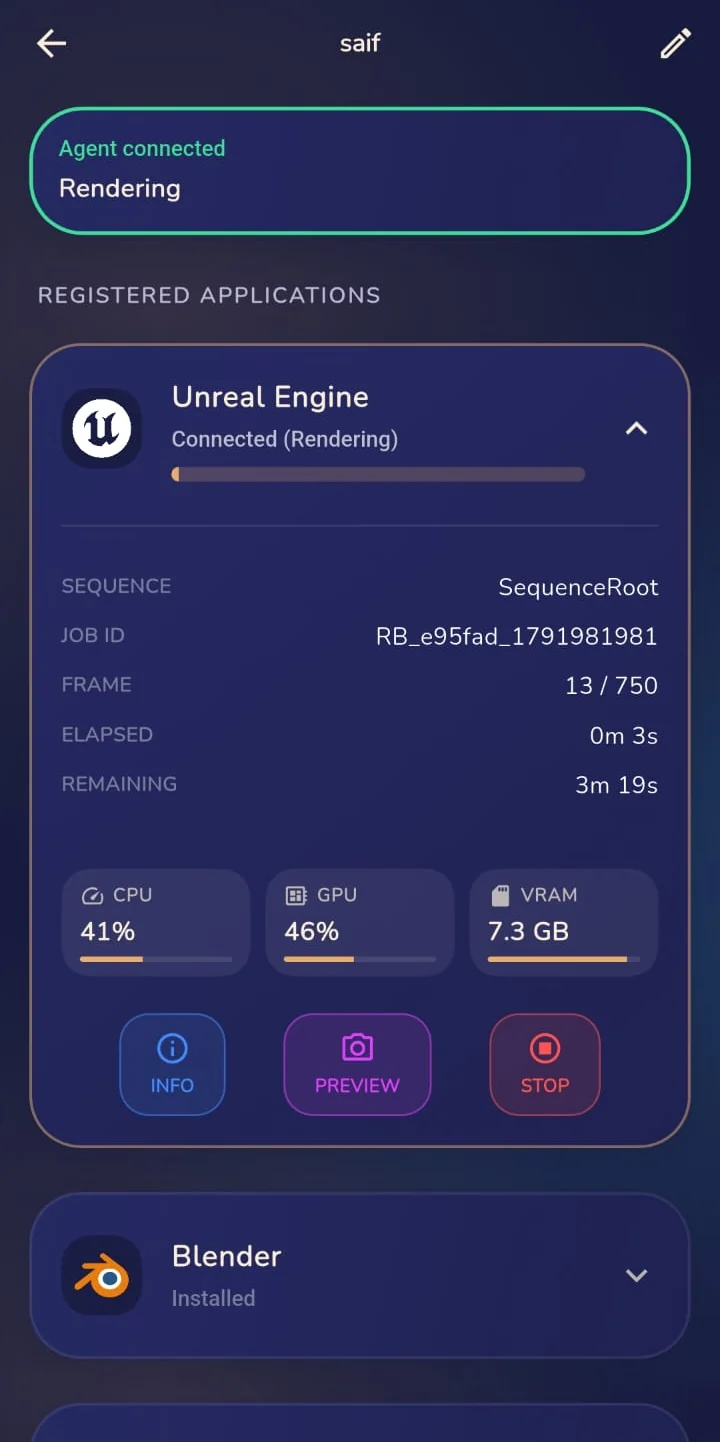
| Action | Details |
|---|---|
| Preview | Captures the frame Movie Render Queue is rendering and sends it to your phone. |
| Stop | Cancels the render. The app records that it was stopped from the app. |
| Render | Starts a new render in the open editor: pick one of the project's Movie Render Queue presets and a level sequence. |
Remote start needs the editor to be open with the project loaded. Presets without Render Buddy Reporter still render, but your phone won't see their progress.
Alerts
- Render started, finished, failed or cancelled.
- Black frames: several black frames in a row usually mean missing lighting, a hidden actor or a wrong camera.
- Not responding: the editor stopped reporting for a minute during a render.
Troubleshooting
RenderBuddy doesn't appear in the Plugins window
Check the folder: it must be Plugins/RenderBuddy/RenderBuddy.uplugin, and the build must match your engine version.
The connection window says Agent Offline
Start the RenderBuddy Agent on the same computer. The plugin finds it automatically.
The render runs but the phone shows nothing
Make sure the job's settings include Render Buddy Reporter.