
Agent
The small Windows app that connects the plugins in your 3D apps to your phone. It lives in the tray, and it only sends data when something changes.
- Windows 10 and 11, 64-bit
- Needs an internet connection
- Runs in the tray
Install
- Download the installer
Get the Agent from the Download section.
The installer isn't public yet. It's coming soon.
- Run the setup
It installs RenderBuddy Agent in Program Files. Two options are worth a look:
- Start RenderBuddy Agent when Windows starts: tick it on render machines, so the Agent is back after every reboot.
- Create a desktop shortcut: optional.
- Launch it
The Agent opens when setup finishes. Later, start it from the Start menu. Closing the window keeps it running in the tray. Click the owl in the tray to open it again, or right-click it and choose Quit to stop it.
Pair with your phone
Pairing links this PC to your RenderBuddy account. You do it once. During the beta, each account can pair one computer.
- Open the Agent
Until it's paired, it shows Pair this machine and a QR code.
- Scan the code with the app
In the RenderBuddy app, tap the big scan button on the dashboard and point your camera at the code.
- Confirm on your phone
The app asks Pair this computer? and shows this PC's name. Tap Pair.
- That's it
The Agent switches to its main view and the machine appears on your dashboard. The app names it after the computer. You can rename it from the machine page.
Scanning also sets up end-to-end encryption. The QR code carries a secret key that goes straight from this PC to your phone, never through our servers. This PC encrypts previews, and what it reports about your work and this computer, with keys made from it. See Privacy and security.
 RenderBuddy Agent
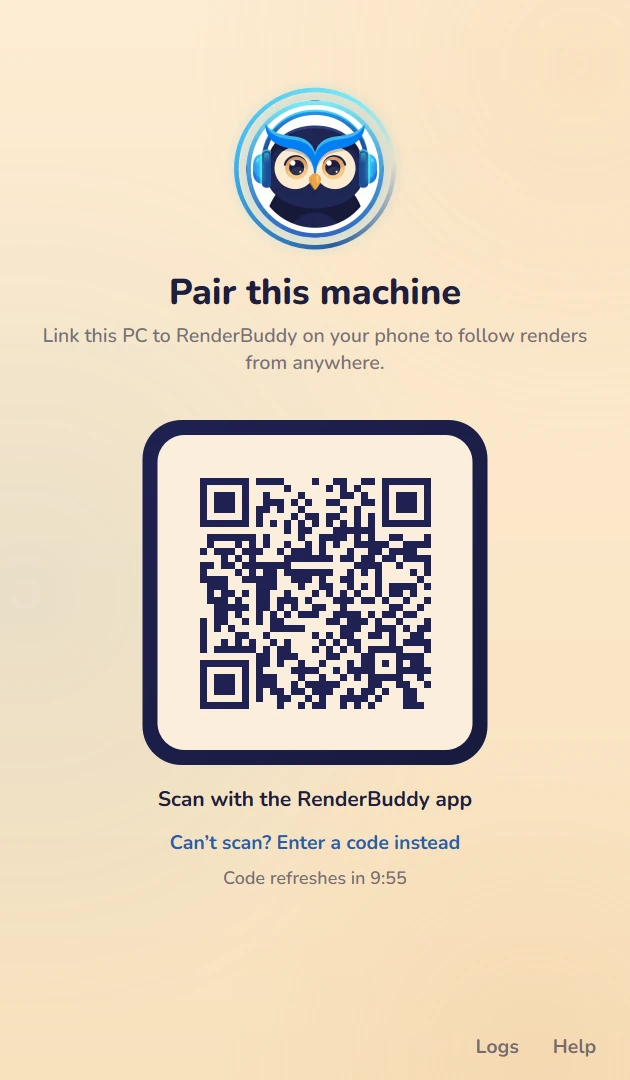
Codes refresh every 10 minutes and work only once. If you pair the same PC again later (after unpairing, for example), it comes back as the same machine in the app, not a new one.
While it waits for your phone
| The Agent says | Meaning |
|---|---|
| RenderBuddy's servers are busy. This PC keeps checking. | Shown under the countdown. The Agent keeps checking for your phone's answer by itself. |
| Can't reach RenderBuddy right now. This PC keeps checking. | The same, when this PC can't reach RenderBuddy. Check its internet connection. |
| Too many pairing requests from this network right now or RenderBuddy's servers are busy right now, with Trying again in N s. | The Agent couldn't get a code yet. It tries again by itself. |
| Pairing paused | Three codes in a row expired unused, so the Agent stopped asking for new ones. Click New code, or reopen the window, when you're ready to pair. |
The Agent window
RenderBuddy Agent 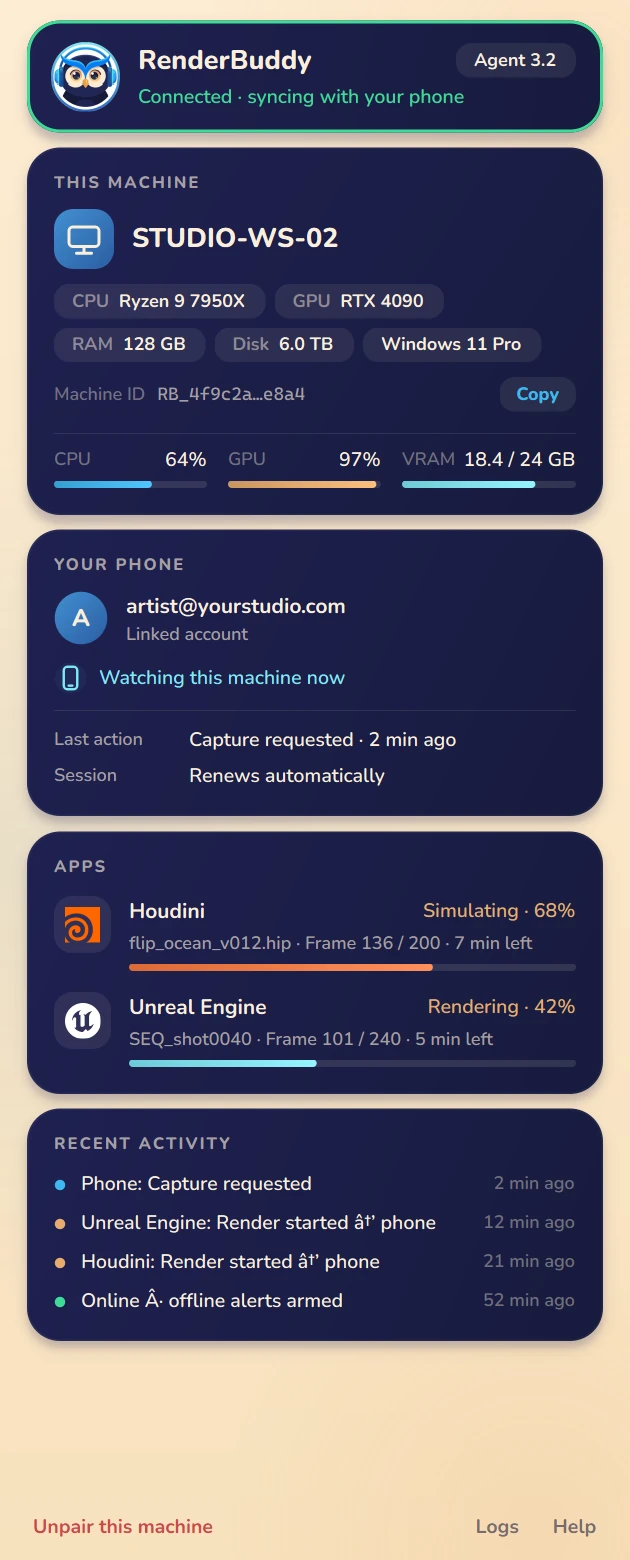
Header
Its border shows the connection to the cloud, like the machine cards in the app:
- Green: connected and syncing with your phone.
- Amber, turning: reconnecting. This happens after a network drop and clears on its own.
- Grey: offline. Plugins keep reporting to the Agent, and it catches up once it's back online.
This machine
The computer's name, its CPU, GPU, RAM, disk and Windows version, and its machine ID with a Copy button. While something is rendering, live CPU, GPU and VRAM bars appear underneath.
Your phone
The account this machine is linked to, and what the app is doing right now:
| The Agent says | Meaning |
|---|---|
| Watching this machine now | The app is open on this machine's page. Numbers update every few seconds. |
| RenderBuddy app open | The app is open on the dashboard. |
| App closed | Nobody is looking. You'll still get push notifications. |
Below that: the last action sent from the phone (for example "Capture requested · 2 min ago"), the session status, Previews and text: end-to-end encrypted, and the Add a phone button (see Add another phone).
Apps
Every app with the RenderBuddy plugin that's open on this machine, with its state, progress, file or sequence, frames and time left. With no app open, it reminds you to open Unreal, Houdini or Blender with the plugin.
Recent activity and footer
Recent activity lists the last pushes sent to your phone, commands from the phone, and connection changes. The footer has Unpair this machine, Logs (a diagnostic log, hidden until you open it) and Help, which opens these docs.
The Agent follows your Windows Day or Night setting and switches when you change it.
Staying paired
- Restarts are fine. When the Agent starts, it restores its pairing by itself.
- A wrong clock on the PC doesn't end the pairing. While the clock is more than an hour off, only previews pause (see Troubleshooting).
- No internet yet? If the PC starts the Agent before its network is up, the Agent keeps your pairing and says Can't reach RenderBuddy right now. Your pairing is kept. It retries by itself and connects as soon as the network is back. No need to pair again.
- It renews itself. While the Agent runs, it keeps its session alive. The Session line says Renews automatically.
- Closed for more than 24 hours? Then you'll need to pair again. The Agent shows the QR code with a short note.
- If renewing keeps failing (for example, no internet), the Session line turns amber with the time left and an Extend link.
Add another phone
Every phone signed in to your account gets this machine's notifications. To show its jobs and previews, a phone also needs this computer's key. The phone that scanned the QR code has it. Add any other phone, or the same phone after you reinstall the app or sign out, like this:
- Sign in on the phone
Use the same Google account. The machine's card says This phone doesn't have this computer's key.
- Click Add a phone
In the Agent window, click Add a phone. The Agent shows a QR code.
- Scan it
On the machine's card in the app, tap Get this computer's key and scan the code.
- Compare the codes
The Agent asks Does the phone show a six-digit code, for example 207 473. If the phone shows the same code, click The codes match. If not, click The codes differ: nothing is sent. If they differ again, someone may be interfering: don't add that phone.
The code works once and expires after 2 minutes. A phone's key can't be taken back: to shut every phone out, unpair and pair again, then add the other phones again.
Unpair a machine
From the Agent, click Unpair this machine and confirm. From the app, tap the select button on the dashboard, pick the machine and delete it. Either way the Agent goes back to the pairing screen, and the app no longer shows the machine.
Privacy and security
What the plugins report about your work, this computer's details and your previews are end-to-end encrypted: only this PC and your phones can read them. A few things stay visible to RenderBuddy, Google and Apple so the service can work; they're listed below. The Privacy Policy lists everything RenderBuddy collects.
Local only
Plugins talk to the Agent only on this computer (127.0.0.1, port 5556). Each time it starts, the Agent writes a new random token and key to %LOCALAPPDATA%\RenderBuddy (agent.lock and agent.key). A plugin sends nothing until the program on that port proves it holds the key, then presents the token with every request.
Stored safely
The pairing and its encryption key are saved in %APPDATA%\RenderBuddy, encrypted by Windows for your user account. The secret this PC's machine ID comes from is in %LOCALAPPDATA%\RenderBuddy, encrypted the same way.
End-to-end encrypted
The QR code carries a key that reaches your phone without passing through our servers. With keys made from it, this PC encrypts (AES-256-GCM) previews, job and scene names, file paths, errors, progress, and this computer's name and hardware before they leave. Our servers, Firebase and Google store them only as unreadable data. Your phone refuses a preview that isn't encrypted with that key or is out of date, and doesn't show an update that fails its check. Encryption can't protect a PC or phone that someone else controls.
What leaves your PC
End-to-end encrypted: the computer's name, your Windows user name and the machine's specs; job, scene, node and take names, file paths and error messages; frames, progress and disk space; the machine's load while you watch; and a preview of the current frame, sent only when you tap Preview. Visible to RenderBuddy and Google, so the service can work: your account, a random machine ID, whether the machine is online and since when, which app is open (Unreal Engine, Houdini or Blender) and its state, the kind of job, events such as "render failed" and their times, the Agent's version, and when something is written and roughly how big it is. Notifications say only the app and what happened, for example "Unreal Engine: Render failed. Open RenderBuddy for details." Access rules keep all of it to your account. For Houdini, the Agent reads the frames the renderer wrote and makes the small preview here on the PC; the frames themselves stay on your disk. Never your scenes or project files.
Only you
A machine's data is visible only to the account it's paired with. Each Agent signs in with its own identity for that one pairing: unpairing or pairing again cuts off the old one at once.
Troubleshooting
A plugin says the Agent isn't running
Start RenderBuddy Agent from the Start menu, or look for the owl in the tray. Plugins only connect to an Agent on the same computer.
The header stays amber or grey
Check the PC's internet connection. The Agent reconnects by itself, and nothing is lost in the meantime.
"Your session expired"
The Agent was closed for more than 24 hours. Scan the new QR code from the app.
Recent activity says "Previews are off: this PC's clock is more than an hour off"
The PC's date or time is wrong by more than an hour. The Agent stays paired, but makes no previews until the clock is right. On the PC, open Settings → Time & language → Date & time and turn on Set time automatically. Previews come back by themselves, with no need to restart the Agent.
The machine doesn't show up in the app
Make sure the app is signed in to the same Google account that's shown under Your phone in the Agent.
"RenderBuddy Agent is already running"
Only one Agent runs per Windows user. Look for the owl in the tray (you may need to open the hidden icons) and click it to open the window.
"Pairing was refused: the encryption check failed"
The Agent couldn't confirm that your phone received the encryption key from the QR code, so it refused the pairing to protect your previews. You also see it after choosing I scanned the QR code when the Agent asks how you paired. Scan the QR code again. If it keeps happening, send us a log.
A plugin says "Agent not confirmed"
The program on port 5556 didn't prove it's your RenderBuddy Agent, so the plugin sent it nothing. Start the RenderBuddy Agent under your own Windows user account.
A plugin says "Update needed"
The plugin and the Agent don't speak the same version. The message says which one is too old. Update it, and the plugin connects again.
The Agent says "Plugins can't reach the agent"
The message says why. If port 5556 is busy, another program is using it: the Agent retries, or asks you to restart it once the port is free. If it couldn't write its files, restart the Agent.
The app says "One computer per account during the beta"
Your account already has a computer. Remove it in the app, then pair this one. See Pair your computer.
Sending us a log
Click Logs in the Agent's footer and share what you see on Discord or by email.